GRPH 325 · Project 1
Your first HTML page
This assignment will teach you to create a simple HTML page and style it with CSS. You will be introduced to the basics of web development and the software Visual Studio Code.
By the end of this class you will have a working web page about a dog named Biscuit, written by you, from an empty file. You will learn your way around VS Code, what every line in the <head> of an HTML page does, how to add an image, and how to style a page with CSS.
| Part | Task | Time |
|---|---|---|
| 1 | Get to know VS Code | 10 min |
| 2 | Open a folder | 5 min |
| 3 | Choose a color theme | 5 min |
| 4 | Create a new HTML file | 5 min |
| 5 | Write the head | 15 min |
| 6 | Add the content | 10 min |
| 7 | View it in a browser | 5 min |
| 8 | Add an image | 10 min |
| 9 | Style it with CSS | 20 min |
Parts 1–9 take about 85 minutes. If you run out of time in class, finish Part 9 for homework.
1. Get to know VS Code

Visual Studio Code (VS Code) is a free code editor: a program for writing the plain-text files that make up websites. Unlike Word, it adds no hidden formatting, and it colors your code so it is easier to read.
Open VS Code. If it isn’t installed, download it from code.visualstudio.com.
Using Copilot Chat?Install VS Code, then choose Use AI Features and sign in with your college Microsoft account to access Copilot Chat. Downloading VS Code alone does not turn on Chat.
Find these five areas on your screen:
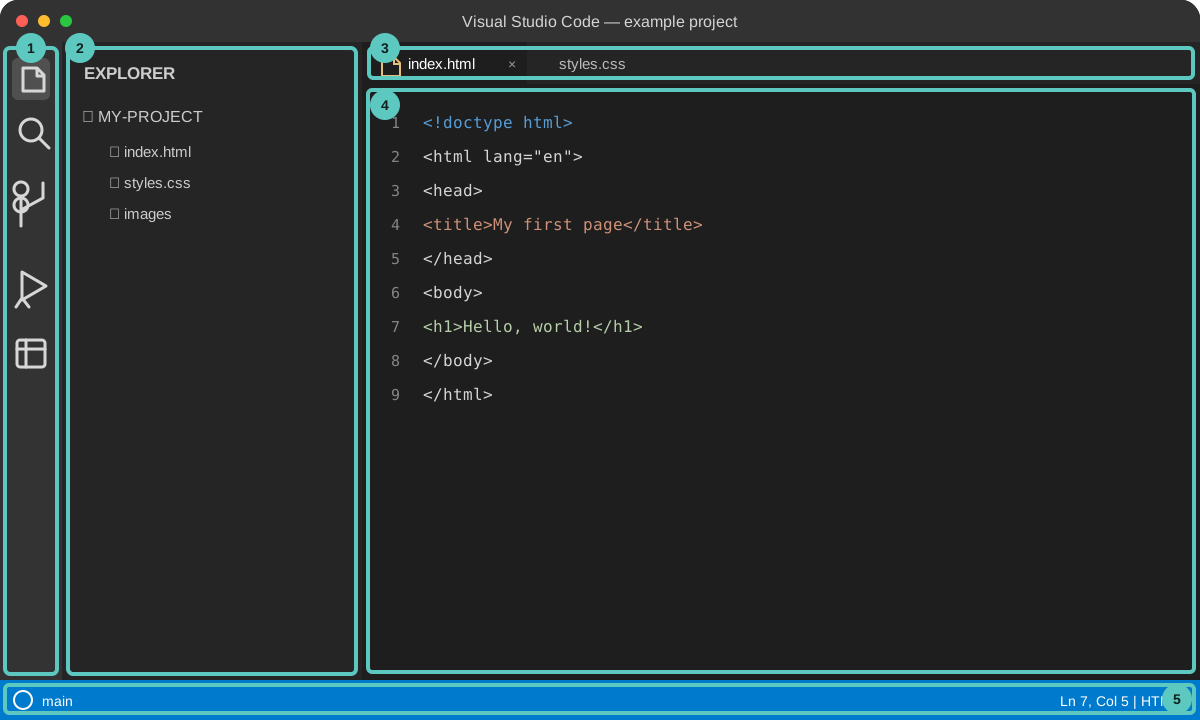
Illustration of the VS Code interface: 1 Activity Bar, 2 Explorer, 3 Tabs, 4 Editor and 5 Status Bar. The real interface may look slightly different. Area Where What it’s for Activity Bar Narrow strip of icons, far left Switches the side panel: Explorer (files), Search, Extensions and more Explorer Side panel, left Shows the files and folders in your project Editor Large area, center Where you type your code Tabs Top of the editor One tab per open file. A white dot on a tab means unsaved changes. Status Bar Strip along the bottom Shows the file’s language (for example, HTML) and your line number Turn on Word Wrap so long lines fit on screen: choose View → Word Wrap, or press Alt + Z (Windows) or Option + Z (Mac).
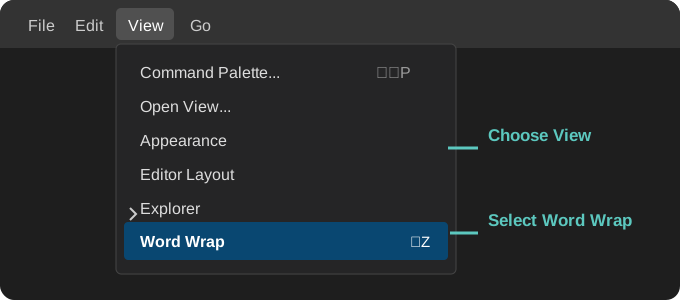
Open View, then select Word Wrap. The menu layout may vary slightly by operating system or VS Code version.
2. Open a folder
A website is a folder of files. In VS Code you always open the whole folder, not a single file, so the editor can see everything in your project.
Create a folder on your desktop named
LastnameFirstInitial_CodingWarmUp.Name files the web wayUse the required format
LastnameFirstInitial_CodingWarmUp. File and folder names may use letters (capitals are fine), numbers, underscores and hyphens, but no spaces or other symbols. Capitalization must match exactly everywhere you use a name: web servers treatIndex.htmlandindex.htmlas different files.Open it in VS Code. Choose File → Open Folder, select
LastnameFirstInitial_CodingWarmUpand click Open (Mac) or Select Folder (Windows).If VS Code asks “Do you trust the authors of the files in this folder?”, click Yes, I trust the authors. It’s your own folder.
Check the Explorer. Your folder name appears in capital letters at the top of the Explorer panel. It is empty for now; files you add will appear below it.
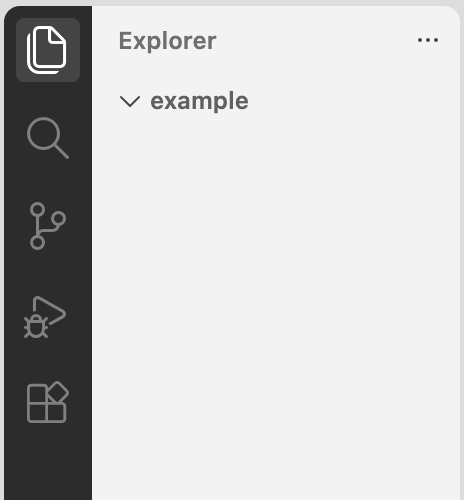
A finished project in the Explorer panel. Yours will fill up like this as you work.
3. Choose a color theme
Pick a light, dark or high-contrast theme to make the editor comfortable to read. Open the theme picker with Ctrl + K, then Ctrl + T (Windows/Linux), or Cmd + K, then Cmd + T (Mac). You can also open File → Preferences → Theme → Color Theme (Windows/Linux) or Code → Preferences → Theme → Color Theme (Mac), then choose a theme from the list.
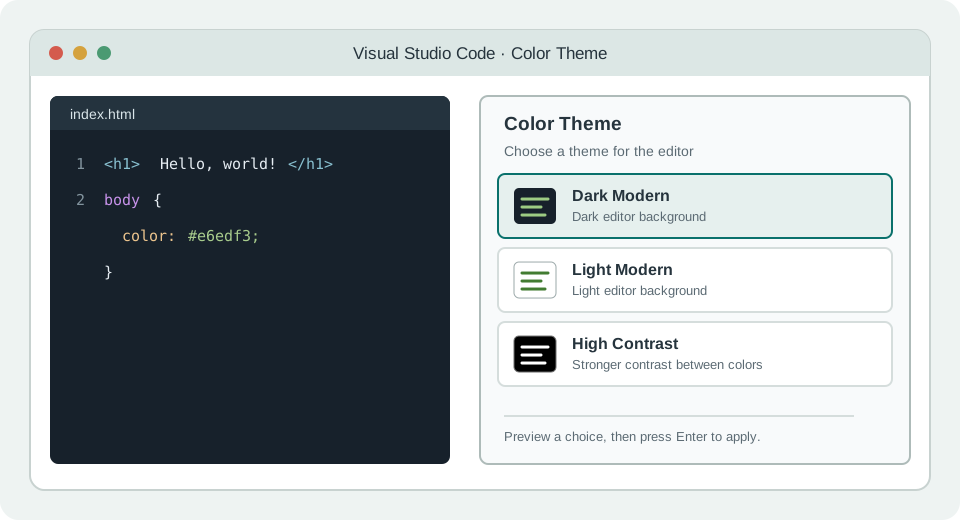
4. Create a new HTML file
Click the New File icon next to your folder name in Explorer (a page with a plus sign).
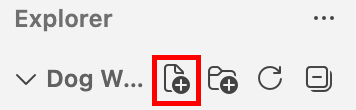
Hover over the folder name to see the New File icon. Type
index.htmland press Enter. The file opens in the editor.LastnameFirstInitial_CodingWarmUp/ └── index.html ← new, emptyImportantThe
.htmlending tells VS Code and the browser that this is a web page. Look at the Status Bar: it now says HTML. The nameindex.htmlis special: it is always the home page of a website.
5. Write the head
Every HTML page has two parts. The head holds information about the page, for the browser and search engines; none of it appears on the page itself. The body holds everything visitors see. Build the page one piece at a time, and save after each step with Ctrl + S (Windows) or Cmd + S (Mac).
You may type the code or use the Copy button. Either way, read the explanation under each block before you move on: you should be able to say what every line does and why it is there. Copying saves time; understanding is the skill you are graded on. If you type, notice that VS Code adds the closing tag for you: type <head> and it adds </head>.
Declare the document type on line 1.
index.html<!doctype html>This tells the browser the file is a modern HTML page. It is always the very first line.
Add the
htmlelement below it. Everything else on the page goes inside it.index.html<!doctype html> <html lang="en"> </html>lang="en"is an attribute: extra information inside the opening tag. It tells screen readers to read the page in English.Add the
headandbodyinside thehtmlelement.index.html<!doctype html> <html lang="en"> <head> </head> <body> </body> </html>The head and body sit side by side inside
<html>. By convention they line up with<html>(VS Code’s!shortcut writes them the same way), and everything inside them is indented with Tab. Indenting shows which elements are inside which.Set the character set as the first line inside the head.
index.html (inside <head>)<meta charset="UTF-8">A
<meta>tag gives the browser information about the page.charset="UTF-8"lets the page display any letter or symbol, such as é, ñ or ©. A<meta>tag has no closing tag.Add the viewport on the next line.
index.html (inside <head>)<meta name="viewport" content="width=device-width, initial-scale=1">This tells phones to show the page at their real screen width instead of shrinking a desktop-sized page. Every responsive website needs this line.
Add the title.
index.html (inside <head>)<title>Meet Biscuit the Corgi</title>The title appears in the browser tab, in bookmarks and as the blue headline in search results. Every page needs a unique, descriptive title.
Add a description.
index.html (inside <head>)<meta name="description" content="Meet Biscuit, a three-year-old Corgi who loves tennis balls, naps and peanut butter.">Search engines often show this sentence under your title in search results. Keep it under 155 characters.
Add yourself as the author, with your own name.
index.html (inside <head>)<meta name="author" content="Your Name">This records who wrote the page.
Check your head. It should now look like this:
index.html<!doctype html> <html lang="en"> <head> <meta charset="UTF-8"> <meta name="viewport" content="width=device-width, initial-scale=1"> <title>Meet Biscuit the Corgi</title> <meta name="description" content="Meet Biscuit, a three-year-old Corgi who loves tennis balls, naps and peanut butter."> <meta name="author" content="Your Name"> </head> <body> </body> </html>Line What it does <!doctype html>Says this is a modern HTML page <html lang="en">Wraps the whole page and sets its language <head>Holds information about the page (not shown on the page) <meta charset="UTF-8">Lets the page show any character <meta name="viewport" …>Makes the page fit phone screens <title>Text in the browser tab and search results <meta name="description" …>Summary shown in search results <meta name="author" …>Who wrote the page <body>Everything visitors see
6. Add the content
Now fill the body. Type or copy the code. The words alone are also in the Content to copy boxes at the end of this part, if you want to write your own tags around them.
Add a main heading and an introduction inside the body.
index.html (inside <body>)<h1>Meet Biscuit</h1> <p>Biscuit is a three-year-old Corgi who lives in Marietta, Ohio. She has short legs, big ears and a very loud bark for such a small dog.</p><h1>is the most important heading on the page; use only one.<p>is a paragraph.Add a section heading and a list below the paragraph.
index.html (inside <body>)<h2>Her favorite things</h2> <ul> <li>Chasing tennis balls</li> <li>Napping in sunny spots</li> <li>Peanut butter treats</li> <li>Meeting new people at the park</li> </ul><h2>is a second-level heading.<ul>starts an unordered (bulleted) list, and each<li>is one list item inside it.Add a second section below the list.
index.html (inside <body>)<h2>A day in her life</h2> <p>Biscuit wakes up at 7:00 every morning and waits by the door for her walk. In the afternoon she naps, and in the evening she plays fetch in the backyard until it gets dark.</p> <p><strong>Fun fact:</strong> Corgis were first bred in Wales to herd cattle.</p><strong>marks important words; browsers show them in bold.Tidy and save. Right-click in the editor and choose Format Document to fix the indentation, then save.
Content to copy
Biscuit is a three-year-old Corgi who lives in Marietta, Ohio. She has short legs, big ears and a very loud bark for such a small dog.Chasing tennis balls
Napping in sunny spots
Peanut butter treats
Meeting new people at the parkBiscuit wakes up at 7:00 every morning and waits by the door for her walk. In the afternoon she naps, and in the evening she plays fetch in the backyard until it gets dark.Corgis were first bred in Wales to herd cattle.7. View it in a browser
Open your page. You can preview it two ways. Use either one for the rest of the course:
- Integrated Browser (inside VS Code): right-click
index.htmlin Explorer and choose Open with Integrated Browser. The page opens in a tab next to your code. - External browser (Chrome, Safari, Edge): right-click
index.htmlin Explorer, choose Reveal in Finder (Mac) or Reveal in File Explorer (Windows), then double-click the file.
You should see a large “Meet Biscuit” heading, a paragraph, a bulleted list and a second section. The browser tab says Meet Biscuit the Corgi. Nothing from the head appears on the page except that tab title.
- Integrated Browser (inside VS Code): right-click
See a change. In VS Code, change the title to
Biscuit’s Pageand save. Refresh the preview (the refresh button in the Integrated Browser, or Ctrl + R / Cmd + R in an external browser) and watch the title change. Then change it back.Look behind the page. Right-click the page in the browser and choose View Page Source. You see exactly the code you wrote. You can do this on any website to learn how it was built.
8. Add an image
Images are separate files. Your HTML doesn’t contain the picture itself; it points to the image file, and the browser loads it from there.
Download a photo of a Corgi from Unsplash or Pexels. Both allow free use. Write down the photographer’s name; you will credit them.
-

Prepare the file. In Photoshop, choose Image → Image Size and set the width to 800 pixels. Then choose File → Export → Export As, pick JPG at about 70% quality, and name it
biscuit.jpg.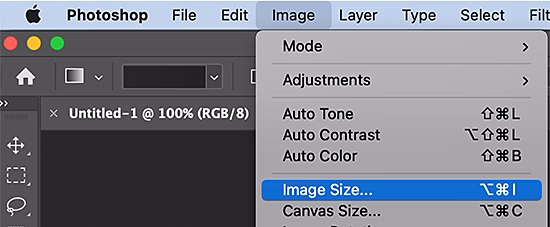
A photo straight from a camera or website can be several megabytes and slow to load. At 800px wide it should be under 200 KB.
Create an
imagesfolder. In VS Code, hover over your folder name in Explorer and click the New Folder icon (a folder with a plus sign). Name itimages.Move your photo into it. Drag
biscuit.jpgfrom your desktop onto theimagesfolder in the Explorer panel. Your project now looks like this:LastnameFirstInitial_CodingWarmUp/ ├── images/ │ └── biscuit.jpg ← new └── index.htmlName images the web wayNo spaces or symbols: use letters, numbers, underscores and hyphens.
Biscuit Photo.JPGwill cause problems;biscuit.jpgwon’t. Whatever you choose, the name in your code must match the file exactly, including capitals.Add the image tag in
index.html, on a new line just below the<h1>.index.html (inside <body>)<h1>Meet Biscuit</h1> <img src="images/biscuit.jpg" alt="A tan and white Corgi sitting on the grass, looking up with its ears raised" width="400"> <p>Biscuit is a three-year-old Corgi who lives in Marietta, Ohio. She has short legs, big ears and a very loud bark for such a small dog.</p>Only the middle line is new. The heading and paragraph around it show where it goes.
Code What it does <img>Places an image. Like <meta>, it has no closing tag.src="images/biscuit.jpg"The source: where the file is. This is a relative path: “open the imagesfolder next to this HTML file, then findbiscuit.jpg.”alt="…"The alternative text. Screen readers read it aloud to people who can’t see the image, and it appears if the image fails to load. Every image needs one. width="400"Displays the image 400 pixels wide. Write only the number, with no “px.” The height adjusts automatically. Write your own alt text. The example describes a photo you may not have. Look at your photo and describe it in one sentence: the dog, what it’s doing, and anything important about the setting.
Weak Strong alt="dog"alt="A Corgi running through tall grass with its tongue out"alt="biscuit.jpg"alt="A Corgi puppy asleep on a blue blanket"alt="Picture of a cute dog"alt="A tan and white Corgi sitting on the grass, looking up"Don’t start with “image of” or “picture of”; screen readers already announce that it’s an image.
Credit the photographer with a new paragraph at the very end of the body, just above
</body>. Use your photographer’s name, and link to Pexels instead if that is where you found the photo.index.html (end of <body>)<p>Photo by Jane Smith on <a href="https://unsplash.com">Unsplash</a>.</p><a>makes a link. Itshrefattribute holds the web address the link goes to, and the words between the tags are what visitors click.Save and refresh the browser. Your photo appears below the heading, and the credit at the bottom is a clickable link.
Broken image icon?Check that the file is inside the
imagesfolder and that the name insrcmatches it exactly, including.jpgand capitalization. A file namedbiscuit.jpegwon’t matchbiscuit.jpg.
9. Style it with CSS
HTML says what each piece of content is. CSS (Cascading Style Sheets) says how it looks: colors, fonts, sizes and spacing. Right now your page uses the browser’s default styles. In this part you will design it.
Three places CSS can go
| Kind | Where it goes | Styles |
|---|---|---|
| Inline | A style attribute on one tag | That one element only |
| Internal | A <style> element in the <head> | This one page |
| External | A separate .css file, linked from the head | Every page that links to it |
Today you will use an internal style sheet, because your site is a single page and everything stays in one file. Websites with several pages use an external style sheet, so one file can style them all. You will learn that in the next project.
How a CSS rule works
h1 {
  color: #b4501a;
  font-size: 48px;
}- The selector (
h1) chooses which HTML to style. Using a tag name styles every element with that tag. - Each declaration is a property and a value, separated by a colon and ending with a semicolon:
color: #b4501a; - The declarations sit inside curly braces
{ }. A missing brace or semicolon breaks the rules that follow it.
Add your styles
After each step, save and refresh the browser to see what changed.
Add a
<style>element inside the head, below the author line.index.html (inside <head>)<meta name="author" content="Your Name"> <style> </style> </head>Everything between
<style>and</style>is CSS, not HTML. Type all of the rules below between these two tags.Style the page’s colors and text with a rule for
body.index.html (inside <style>)body { background-color: #fff8ef; color: #3b2a1e; font-family: Georgia, 'Times New Roman', serif; font-size: 18px; line-height: 1.6; }Property What it does background-colorThe color behind the whole page. #fff8efis a hex code for a warm cream, the same kind of code you use in Illustrator.colorThe text color: a dark brown. Everything inside bodyinherits it.font-familyThe typeface. List several, separated by commas: if the first isn’t installed, the browser tries the next. End with a generic family such as seriforsans-serif.font-sizeThe size of the body text. line-heightLeading: the space between lines, as a multiple of the font size. Set the page width and margins. Add these three lines inside the same
bodyrule, belowline-height.index.html (inside the body rule)max-width: 700px; margin: 0 auto; padding: 32px;Property What it does max-width: 700pxStops the text column from getting wider than 700 pixels, so lines stay easy to read on big screens. On a phone, it simply fills the screen. margin: 0 autoNo space above and below; equal automatic space on the left and right. This centers the column. padding: 32pxSpace inside the edges, so text never touches the side of the screen. Style the headings. Add these rules below the
bodyrule (after its closing}).index.html (inside <style>)h1 { font-family: Arial, Helvetica, sans-serif; font-size: 48px; color: #b4501a; margin-bottom: 8px; } h2 { font-family: Arial, Helvetica, sans-serif; color: #b4501a; border-bottom: 3px solid #f3d9b8; padding-bottom: 4px; margin-top: 40px; }Pairing a sans-serif for headings with a serif for body text creates contrast and clear hierarchy.
border-bottomdraws a line under eachh2:3pxthick,solidand light tan.margin-topadds space above each section so the page breathes.Style the list and bold text.
index.html (inside <style>)li { margin-bottom: 8px; } strong { color: #b4501a; }The
lirule adds a little space between list items. Thestrongrule makes “Fun fact:” orange as well as bold.Style the image.
index.html (inside <style>)img { max-width: 100%; height: auto; border-radius: 12px; border: 6px solid #ffffff; box-shadow: 0 4px 12px rgba(0, 0, 0, 0.15); }Property What it does max-width: 100%The image never grows wider than its container, so it shrinks to fit a phone screen. height: autoKeeps the image’s proportions when its width changes. border-radiusRounds the corners. borderA white frame, 6 pixels thick, like a photo print. box-shadowA soft drop shadow: no sideways offset, 4px down, 12px blur, black at 15% opacity. Style the link.
index.html (inside <style>)a { color: #b4501a; font-weight: bold; } a:hover { color: #3b2a1e; }a:hoverapplies only while the mouse is over the link, so visitors can tell it’s clickable. Rest your pointer on the photo credit link to test it.Check your style sheet. The complete
<style>element should look like this:index.html (inside <head>)<style> body { background-color: #fff8ef; color: #3b2a1e; font-family: Georgia, 'Times New Roman', serif; font-size: 18px; line-height: 1.6; max-width: 700px; margin: 0 auto; padding: 32px; } h1 { font-family: Arial, Helvetica, sans-serif; font-size: 48px; color: #b4501a; margin-bottom: 8px; } h2 { font-family: Arial, Helvetica, sans-serif; color: #b4501a; border-bottom: 3px solid #f3d9b8; padding-bottom: 4px; margin-top: 40px; } li { margin-bottom: 8px; } strong { color: #b4501a; } img { max-width: 100%; height: auto; border-radius: 12px; border: 6px solid #ffffff; box-shadow: 0 4px 12px rgba(0, 0, 0, 0.15); } a { color: #b4501a; font-weight: bold; } a:hover { color: #3b2a1e; } </style>Make it yours. Change at least three values to create your own design: a new color palette, different fonts, or different sizes and spacing. Save and refresh after each change.
Design tipsBuild a palette at Coolors and copy the hex codes. Check that your text color is readable on your background with the WebAIM Contrast Checker: aim for 4.5:1 or higher. Fonts that work on every computer include Arial, Helvetica, Verdana, Georgia, Times New Roman and Trebuchet MS.
To change the font stack, edit the
font-familyvalues in your CSS. For example,font-family: Arial, Helvetica, sans-serif;tells the browser to use Arial first, then Helvetica, then a generic sans-serif if the first two aren’t available. You can define different stacks for different elements, such asbody { font-family: Georgia, 'Times New Roman', serif; }andh1 { font-family: Arial, Helvetica, sans-serif; }. This creates a clear hierarchy: a serif font for body text and a sans-serif font for headings.
VS Code tipClick on any color value in your CSS, such as #b4501a, and hover over the small color square VS Code shows beside it. A color picker opens so you can choose a new color visually.
Check your work
Your ticks are saved in this browser.
Hand in
Take one screenshot showing VS Code with your code next to the browser with your styled page. Then zip your LastnameFirstInitial_CodingWarmUp folder (right-click → Compress on a Mac, or Send to → Compressed (zipped) folder on Windows) and upload both to the assignment.
Add a third section with an <h2> and an ordered (numbered) list using <ol>, such as “Biscuit’s morning routine,” then write a CSS rule for ol. Or try the HTML lessons in Web Design Playground.
© Created by Sara Rosenstock, Marietta College Graphic Design.