Step 2.5 · Day 2: CSS design
Make it responsive
Add one media query so the header and cards rearrange on tablets and desktops.
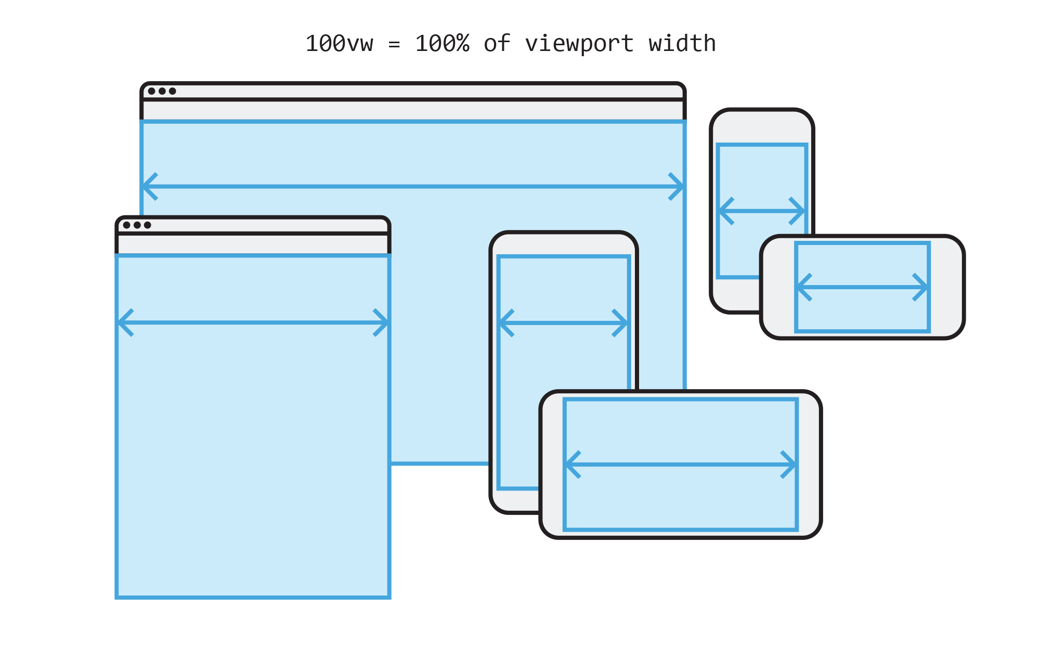
A responsive page adapts its layout to the viewport. Unlike a print piece, a web page has no fixed trim size: the same file is seen on screens from 320px to over 2,500px wide.
What already makes your page responsive
| Code | Where | Effect |
|---|---|---|
viewport meta tag | step 1.3 | Phones show the page at their real width |
max-width: 100% on images | step 2.2 | Photos never overflow the screen |
max-width: 1100px on main | step 2.4 | Content fills small screens and stays readable on big ones |
flex-wrap: wrap on the nav | step 2.3 | Links wrap instead of squeezing |
You wrote the phone layout first; this is called mobile-first design. Now you add changes for bigger screens.
Add the media query at the very bottom of
styles.css.css/styles.css/* ===== 6. RESPONSIVE: tablets and desktops ===== */ @media (min-width: 768px) { .site-header { display: flex; justify-content: space-between; align-items: center; text-align: left; padding: 1.5rem 2.5rem; } nav ul { margin-top: 0; } .hero h2 { font-size: 3rem; } .cards { grid-template-columns: repeat(3, 1fr); } }Code What it does @media (min-width: 768px) { … }A media query. The rules inside apply only when the screen is 768px wide or wider (about the width of a tablet). On phones they are ignored. .site-header { display: flex; … }Puts the logo and the nav side by side. justify-content: space-betweenPushes the logo to the left edge and the nav to the right. align-items: centerLines them up vertically on their centers. repeat(3, 1fr)Three equal columns: the cards sit side by side. font-size: 3remA bigger hero headline where there is room for it. Why at the bottom?These rules are as specific as the ones above them, so the later rule wins (the cascade, step 2.1). If the media query came first, your earlier rules would override it.
Test it in Chrome DevTools. Press F12 (Windows) or Cmd + Option + I (Mac), then click the device toolbar icon (a phone and tablet). Drag the width slowly from 375px to 1280px and watch the layout change at 768px.
Using the Chrome inspection tool. Look for problems at every width: text running off the screen, a sideways scrollbar, cards that are too cramped.
Add one design rule of your own inside the media query. For example, make the cards’ text a little smaller on desktops, or give the header more padding. Save and test again.
Take your two screenshots in DevTools. Set the device toolbar width to 375px, then press Cmd + Shift + P (Mac) or Ctrl + Shift + P (Windows), type screenshot and choose Capture full size screenshot. Rename the file
LastnameFirstInitial_dog-site_mobile.png. Repeat at 1280px and name itLastnameFirstInitial_dog-site_desktop.png.
Grid Garden is a short game that teaches CSS grid.
© Created by Sara Rosenstock, Marietta College Graphic Design.