Step 1.1 · Day 1: HTML structure
Set up your project
Create your project folder, collect four dog photos and open everything in Visual Studio Code.
Create your project folder. On your desktop, make a folder named
LastnameFirstInitial_dog-site. Inside it, make a folder namedimages.LastnameFirstInitial_dog-site/ └── images/ ← your four photos go hereName files the web wayUse letters (capitals are fine), numbers, underscores and hyphens. No spaces or other symbols: spaces break links. Capitalization must match exactly everywhere you use a name: web servers treat
Beagle.jpgandbeagle.jpgas two different files. To match the code in this guide, save your photos with the names in the table below.Download four free dog photos from Unsplash or Pexels. Both allow free use. Choose photos that feel like one family: similar light, color and mood.
Save as Search for Resize to hero.jpga happy dog (wide, horizontal photo) 1600px wide golden-retriever.jpggolden retriever 800px wide beagle.jpgbeagle 800px wide border-collie.jpgborder collie 800px wide 
In Photoshop, choose Image → Image Size to set the width, then File → Export → Export As a JPG at about 70% quality. Big photos make pages slow, especially on phones; each file should be under 300 KB.
Write it downNote each photographer's name. You will credit them in your footer.
-

Open the folder in VS Code. Choose File → Open Folder, select
LastnameFirstInitial_dog-siteand click Open (Mac) or Select Folder (Windows). Your folder appears in the Explorer panel on the left. Always open the whole folder, not a single file, so VS Code can find your images and stylesheet.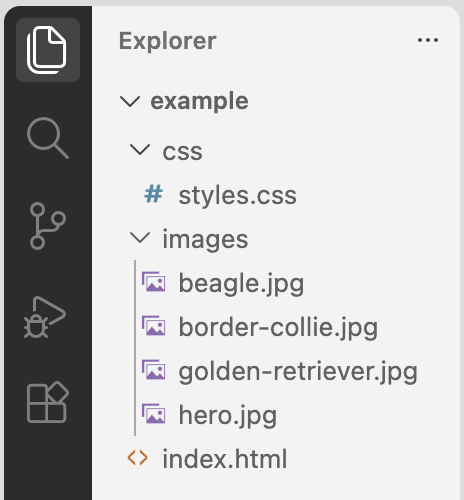
The Explorer panel lets you see your project files and folders at a glance. -
Create
index.html. Hover over your folder name in Explorer, click the New File icon and typeindex.html. Press Enter.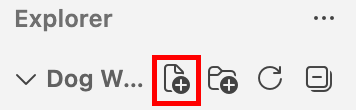
Hover over the folder name to see the New File icon. The home page must be named exactly
index.html. When someone visits a website address, the server automatically sends the file with this name.LastnameFirstInitial_dog-site/ ├── images/ │ ├── beagle.jpg │ ├── border-collie.jpg │ ├── golden-retriever.jpg │ └── hero.jpg └── index.html ← new, empty
VS Code tipsSave with Ctrl + S (Windows) or Cmd + S (Mac). A white dot on a file's tab means it has unsaved changes. The browser only shows what you have saved.
© Created by Sara Rosenstock, Marietta College Graphic Design.