Step 1.2 · Plan and prepare
Source and prepare images
Find images you are allowed to use, record where they came from, and export them at the right size for screens.
Use images you have permission to use
Citing a URL does not give you permission to publish someone's image. Use only images that are licensed for reuse, or your own work.
- Unsplash
Free to use; credit the photographer.
- Pexels
Free to use; credit the photographer.
- Openverse
Searches millions of Creative Commons and public-domain images.
- Wikimedia Commons
Each image lists its own license. Follow it.
- Museum open access
Art Institute of Chicago, the Met, Smithsonian and others share public-domain artwork.
Your own photographs and illustrations are always allowed, and they make your site more original.
Reading a Creative Commons license
Creative Commons licenses are made of short codes. Each code is a condition you must follow.
| Code | Means | What you do |
|---|---|---|
CC0 | Public domain dedication | Use freely; a credit is still good practice |
BY | Attribution | Credit the creator, link the source and name the license |
SA | ShareAlike | If you change the image, share your version under the same license |
NC | NonCommercial | Fine for a class site; not for paid or client work |
ND | NoDerivatives | Do not crop heavily, recolor or alter it |
A good credit names all four parts: “Red Door” by Jane Doe, Wikimedia Commons, CC BY 4.0.
Collect 9–12 images per topic and save the originals in your
resourcesfolder.Record every image in a credits table (a spreadsheet in
resources):File name Title Creator Source URL License red-01Red door, Amsterdam Jane Doe unsplash.com/photos/… Unsplash License You will reuse this information in your image captions and footer.
Size images for screens
On a screen, only the pixel dimensions matter. The resolution setting (72 dpi, 300 dpi) has no effect on how big an image looks on a website.
Many phones and laptops have high-density (Retina) screens that pack two pixels into the space of one. To look sharp there, export images at twice the size they will display.
| Version | Folder | File name | Size | Aim for |
|---|---|---|---|---|
| Thumbnail | images/thumbs | red-01-sm.jpg | 560 × 560 px, cropped square | under 80 KB |
| Large | images/large | red-01-lg.jpg | 1000 px tall, width in proportion | under 300 KB |
Open each image in Photoshop and crop the thumbnail to a square (Crop tool, ratio 1:1).
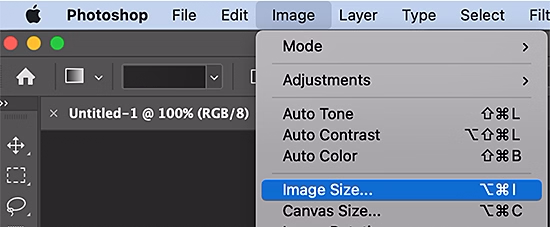
Image > Image Size sets the pixel dimensions. Export with File > Export > Export As: format JPG, quality about 60–70%, color space sRGB, and the pixel size from the table. Check the file size shown in the dialog.
Name the files with your topic, a two-digit number and the size:
red-01-sm.jpgandred-01-lg.jpg. Each thumbnail and its large version share the same number.Write alt text for each image in your credits table. Alt text describes what the image shows for people who cannot see it.
Weak alt text Useful alt text image of red Red front door with a brass knocker on a brick row house red-01.jpg Mondrian-style poster with a large red square in the upper left Compare JPG and WebP. Drop one large image into Squoosh and compare the two formats side by side. WebP files are often 25–35% smaller at the same quality, and every current browser displays them. If WebP wins, export that format instead (Photoshop: File > Save a Copy > WebP) and use
.webpin your file names and code.
All images exported, named and recorded in the credits table. Skipping this step causes most of the broken images later in the project.
© Created by Sara Rosenstock, Marietta College Graphic Design.