File Types & Color Models · Page 3 of 6
Resolution
Resolution is the amount of detail in an image. The higher the resolution, the larger the file size.
Digital images are measured in pixels per inch (ppi). For printing, resolution is measured by the number of dots printed in a linear inch (dpi).
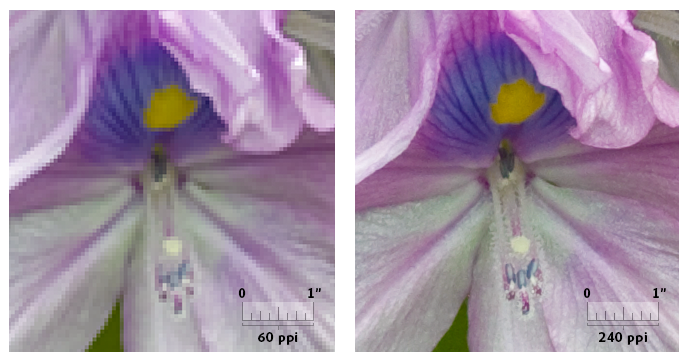
Screen resolution
The dimensions of an image on a screen, such as a monitor, phone or tablet, measured in pixels. It determines how clear the image looks on screen.
72 dpi used to be the most monitors could show, but times have changed. Tips for screen images:
- Unless it’s a huge slider or background image, keep images under 1,000 pixels wide.
- Compress images to about 60–70% quality to lower the file size and keep them sharp.
- If an image file is several MB, it’s too big. Most images can be under 200 KB.
Print resolution
The number of dots per inch (dpi) when an image is printed on paper. It is a critical factor in how sharp the print looks.
Higher resolution gives finer detail and smoother gradients, because the printer’s dots of ink or toner can recreate the image more accurately.
Image Size vs. Canvas Size in Photoshop
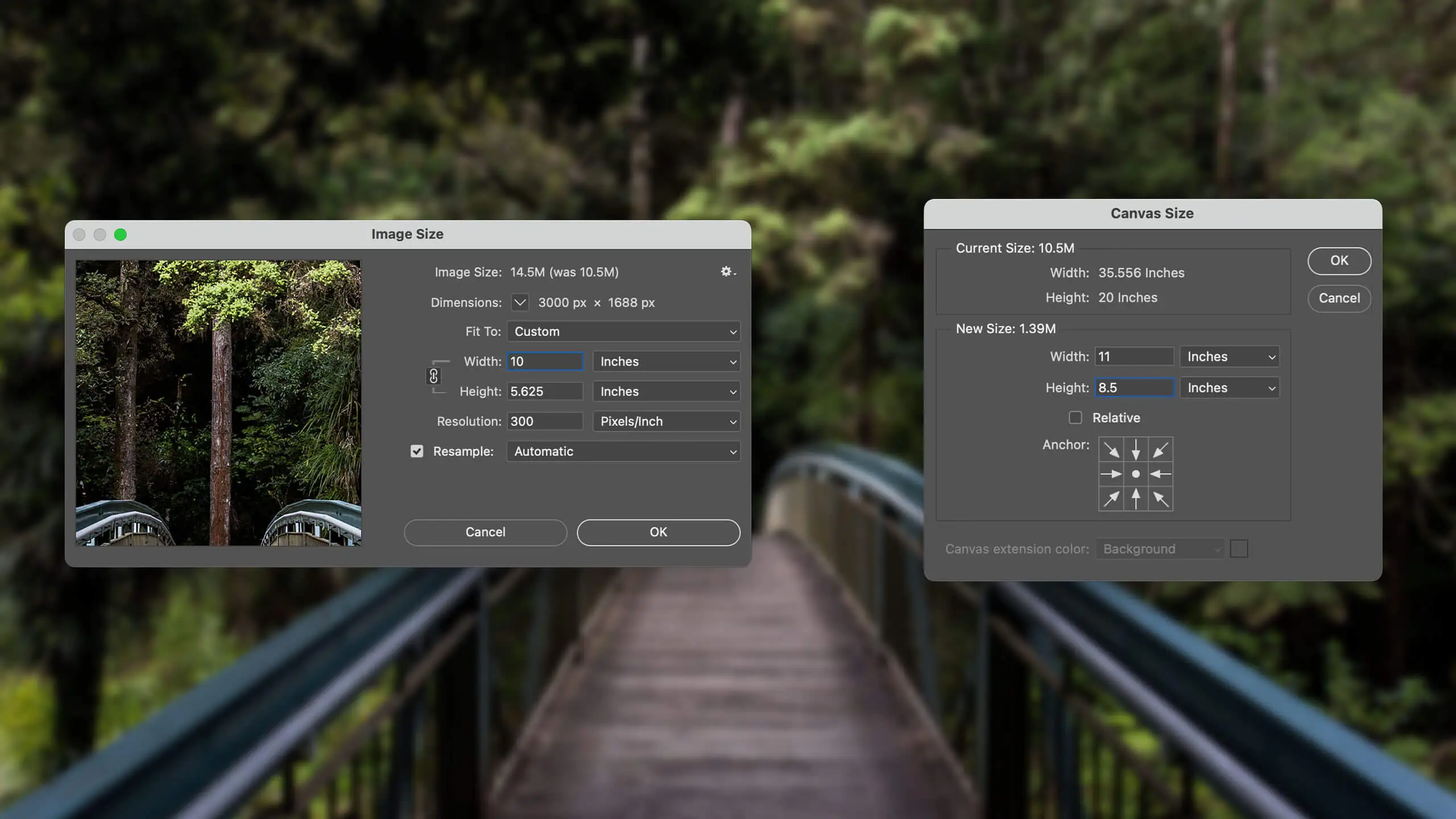
Image Size
Permanently changes the resolution (pixel count) of an image. Use it to upsample or downsample, or to size an image to a specific height or width.
- With your image open, choose Image > Image Size.
- Change the pixel dimensions (in pixels or percent).
Canvas Size
The canvas is your work area. It has no resolution of its own. When you scan or import an image, the canvas is set to the edge of the image.
- With your image open, choose Image > Canvas Size.
- Enter a new size. Use pixels for screen graphics, inches or centimeters for print.
© Created by Sara Rosenstock, Marietta College Graphic Design.