Figma Workflow · Page 4 of 8
Auto Layout
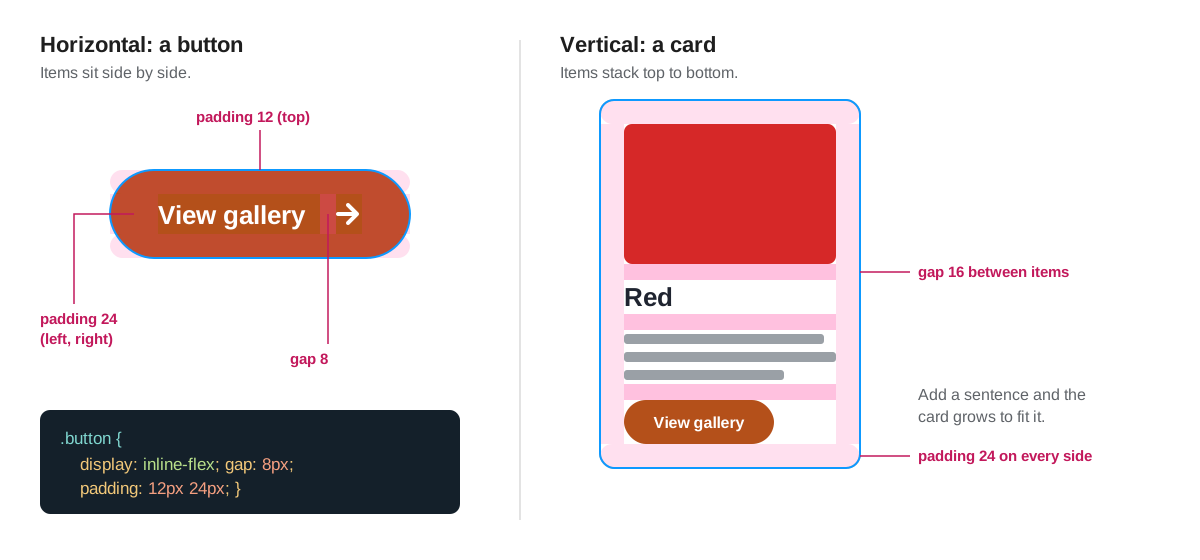
Auto Layout makes Figma frames behave like web page boxes: they hold padding, keep even gaps, and grow or stretch to fit their content.
Without Auto Layout, a button is a rectangle with text placed on top. Change the label and you have to resize the rectangle by hand. With Auto Layout, the frame wraps its content, so the button grows with the label, just like a link styled with CSS.
Add Auto Layout
Select a text layer, or several layers that belong together.
Press Shift + A. Figma wraps them in a new frame with Auto Layout.
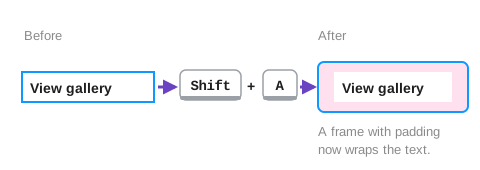
Before and after Shift + A. Set the direction in the right panel: horizontal (side by side) for a button or navigation bar, vertical (stacked) for a card or a page column.
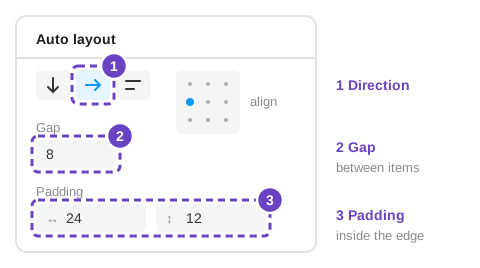
Direction, gap and padding all live in the Auto layout section. Set the gap and padding from your spacing scale. Gap is the space between items; padding is the space between the items and the frame’s edge.
Rename the frame after what it is:
button,topic-card,nav.
Real layouts nest. A card is a vertical Auto Layout frame; inside it, the button is a horizontal one. The navigation bar is a horizontal frame of buttons inside the header. This nesting is the same structure your HTML will have.
Fixed, Hug or Fill
Every layer inside an Auto Layout frame has a width setting and a height setting. You’ll find them in the menus beside W and H in the right panel. Choosing the right one is the secret to designs that turn into flexible code.
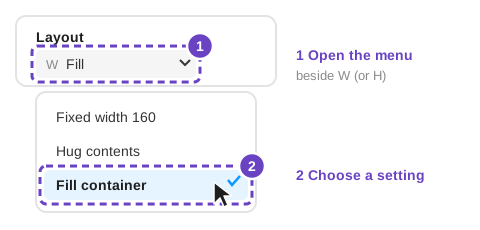
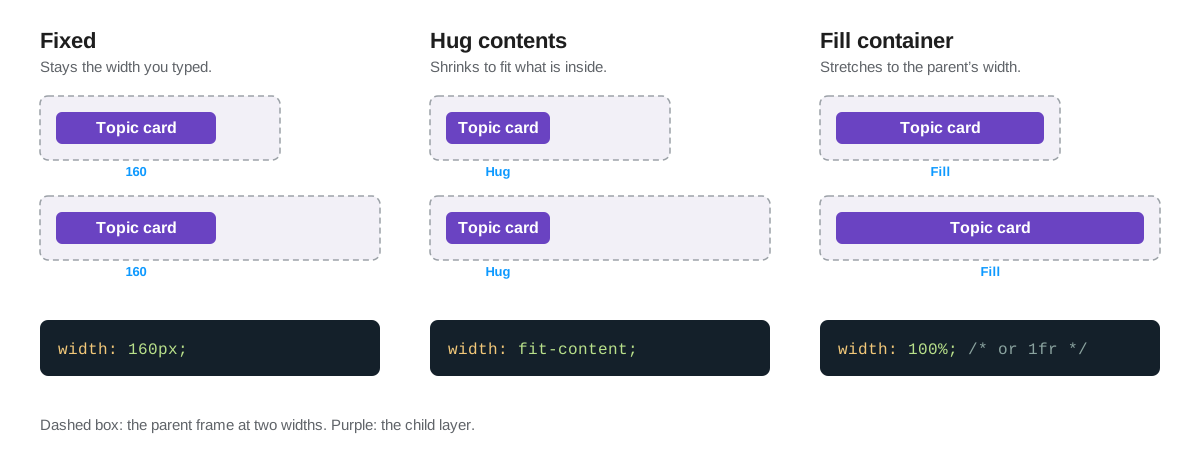
| Setting | Use it for | In CSS |
|---|---|---|
| Fixed | Things that must be an exact size: a logo, an icon, a favicon frame | width: 160px |
| Hug contents | Things that should fit their text: buttons, nav links, tags | width: fit-content or no width at all |
| Fill container | Things that should stretch: cards, gallery thumbnails, text columns | width: 100% or 1fr in a grid |
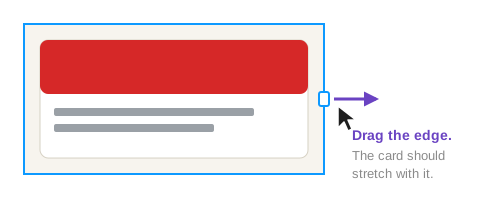
Drag the edge of your screen frame wider and narrower. If a card stays the same width or text spills out, a layer is set to Fixed where it should be Fill. A website will be viewed at every width, so your design should survive this test.
Auto Layout is CSS flexbox
Auto Layout was modeled on the way CSS lays out boxes, so its settings translate almost word for word:
| Figma | CSS |
|---|---|
| Auto Layout, horizontal | display: flex; |
| Auto Layout, vertical | display: flex; flex-direction: column; |
| Gap between items | gap: 16px; |
| Padding | padding: 12px 24px; |
| Alignment | align-items and justify-content |
| Wrap (horizontal frames) | flex-wrap: wrap; |
Quick practice
- Make a button: type a label, press Shift + A, then give it padding 12 / 24, a fill from your
accentvariable and rounded corners. Change the label to a longer word and watch it grow. - Make a card: stack a rectangle (image), an H2, a body paragraph and your button in a vertical Auto Layout with 24 padding and 16 gap. Set the image and text to Fill container.
- Stretch the card wider and narrower. Nothing should overlap or spill out.
© Created by Sara Rosenstock, Marietta College Graphic Design.