Figma Workflow · Page 3 of 8
Build a style guide
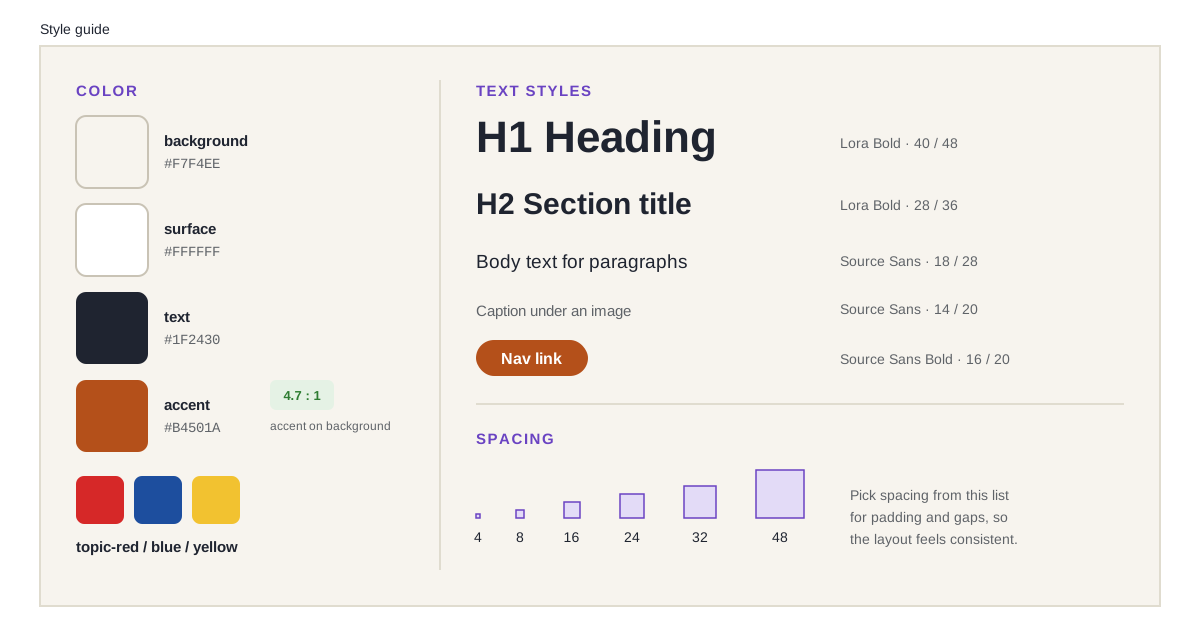
Before you design a single screen, decide your colors, type and spacing, and save them as variables and styles you can reuse everywhere.
A style guide is a small set of decisions you make once and reuse everywhere. It keeps your pages consistent, and it is the part of your Figma file that turns most directly into code.
Colors: save them as variables
A variable stores one value under a name. Change the value once and every layer that uses it updates.
Open the variables panel. Click an empty spot on the canvas so nothing is selected, then find Variables in the right panel.
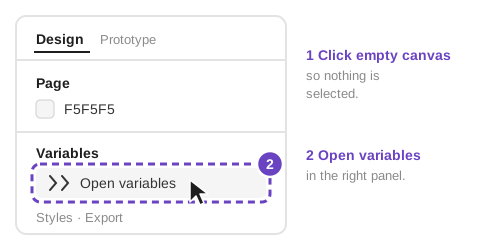
With nothing selected, the right panel shows Variables. Create a color variable for each role:
background,surface,text,accent, and one per topic.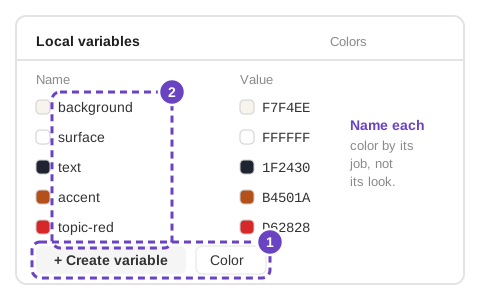
Click + Create variable, choose Color, then name it and set its value. Apply them. When you set a fill, pick from the variables list instead of typing a hex code.
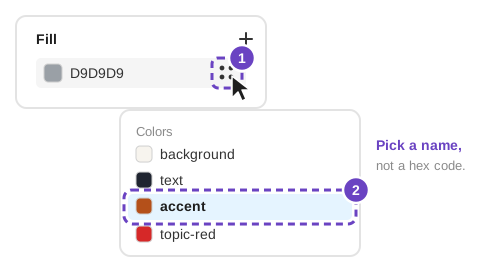
Click the four-dot icon beside a fill, then choose a variable.
Call it accent, not orange. If you later switch to teal, the name still makes sense, and so does every CSS rule that uses it.
Check the contrast
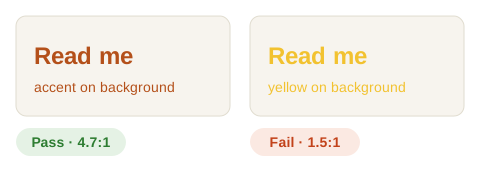
Every text color must stand out from the color behind it. Test each pair in the WebAIM Contrast Checker (opens in a new tab). Body text needs at least 4.5:1. Fix problems now: changing one variable is much easier than hunting through CSS later.
Type: save text styles
A text style saves a font, size, weight and line height together.
Choose a Google Fonts pairing. Figma includes every Google Font, and Google Fonts are free to use on the web. Fonts that are only on your computer won’t show up for your website visitors. See Pair fonts for visual hierarchy for help choosing.
Style one sample of each: H1, H2, body, caption and navigation.
Save each as a text style. Select the text, click the style icon next to Typography in the right panel, then + to create a style.
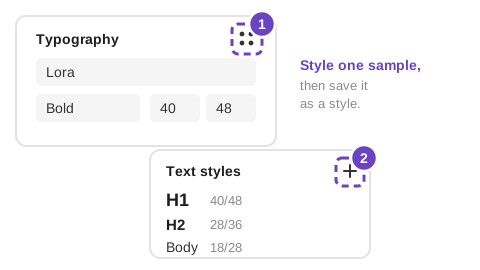
Click the styles icon, then + to save a new text style.
| Style | Example size / line height | Notes |
|---|---|---|
| H1 | 40 / 48 | One per page |
| H2 | 28 / 36 | Section titles |
| Body | 18 / 28 | Never below 16 px on screens |
| Caption | 14 / 20 | Image credits, small print |
| Nav | 16 / 20, bold | Navigation links and buttons |
Spacing: pick a scale
Choose padding and gaps from a short list, such as 4, 8, 16, 24, 32 and 48. You will make fewer decisions, and the spacing will look intentional. Hold Shift while pressing an arrow key to nudge a layer by 10 px, or set your own step under Preferences → Nudge amount.
From style guide to CSS
In the Dog Website you wrote --orange: #b4501a;. That line is a CSS custom property, the code version of a Figma variable. In the Triad Website you will copy your style guide straight into the top of your style sheet:
:root {
  --background: #f7f4ee;   /* Figma variable: background */
  --text: #1f2430;         /* Figma variable: text */
  --accent: #b4501a;       /* Figma variable: accent */
  --space-s: 8px;          /* spacing scale */
  --space-m: 16px;
}
h1 { font-size: 2.5rem; line-height: 1.2; }   /* text style: H1, 40 / 48 */
Quick practice
- On your Style guide page, create five color variables named by role and check each text color’s contrast.
- Create the five text styles in the table above from one Google Fonts pairing.
- Draw squares for your spacing scale and label each with its size.
© Created by Sara Rosenstock, Marietta College Graphic Design.