Figma Workflow · Page 2 of 8
Find your way around Figma
Get Figma running, learn the five areas of the editor, and set up a file with named pages and frames.
Get started
Sign in at figma.com (opens in a new tab) with your college email. Students can apply for Figma’s free Education plan.
Choose browser or app. Figma runs in Chrome, Edge, Firefox or Safari. The free desktop app works the same way and can use fonts installed on your computer.
Create a design file from the + or Create button and name it after the project, for example
Triad Website.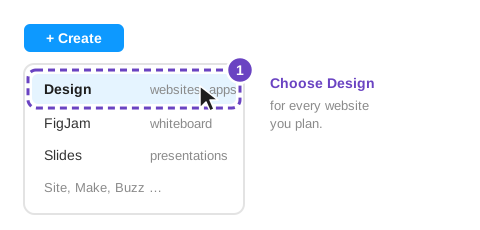
Choose Design from the Create menu.
Figma makes several kinds of files. FigJam is a whiteboard for brainstorming and Slides is for presentations. For websites, always choose a Design file.
The five areas of the editor
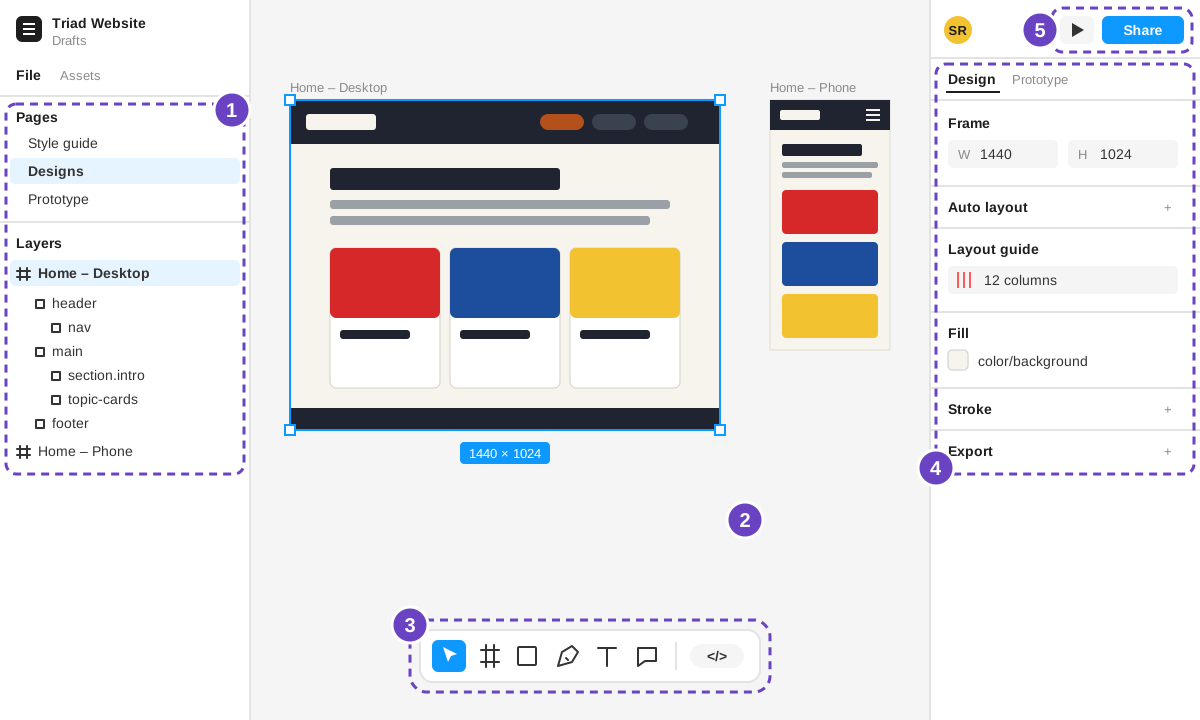
| Area | Where | What it’s for |
|---|---|---|
| 1. Left panel | Left side | Pages at the top, Layers below. Every shape, text box and frame is a layer, listed in stacking order. |
| 2. Canvas | Center | The endless workspace where your frames live. Hold the space bar and drag to move around. |
| 3. Toolbar | Bottom of the canvas | Move, Frame, Shape, Pen, Text and Comment tools. The </> switch opens Dev Mode, a view for reading the design as code. |
| 4. Right panel | Right side | Design tab: size, Auto Layout, fill, stroke and export settings for whatever is selected. Prototype tab: links between frames. |
| 5. Present and Share | Top right | The play button runs your prototype. Share gives your instructor or classmates a link. |
Frames, not artboards
A frame is Figma’s version of a page or a box. Each screen you design is a top-level frame, and frames can hold other frames, which is exactly how HTML elements sit inside each other.
- Frame (F): a box that clips its contents and can have Auto Layout, a layout guide and a background. Use it for screens, headers, cards and buttons.
- Group (Ctrl/⌘ + G): just a bundle of layers with no size or settings of its own. Groups are fine for an icon, but use frames for anything that becomes an HTML element.
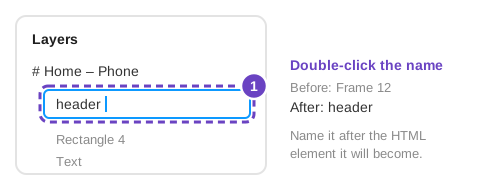
Figma calls new layers Frame 12 and Rectangle 4. Double-click a layer name to rename it. Name screens Home – Desktop, Home – Phone and so on, and name the parts inside after the HTML you will write: header, nav, main, footer.
Organize the file with pages
Use three pages so nothing gets lost:
Shortcuts worth learning first
On a Mac use ⌘ where Windows uses Ctrl, and Option where Windows uses Alt.
| Press | To |
|---|---|
| V | Move and select |
| F | Draw a frame |
| R / T | Draw a rectangle / add text |
| Shift + A | Add Auto Layout to the selection |
| Ctrl + Alt + K | Make the selection a component |
| Ctrl + D | Duplicate |
| Shift + 1 / Shift + 2 | Zoom to fit everything / zoom to the selection |
| Hold Alt and point | Measure the distance between two layers |
| Space + drag | Move around the canvas |
Quick practice
- Create a design file with the three pages above.
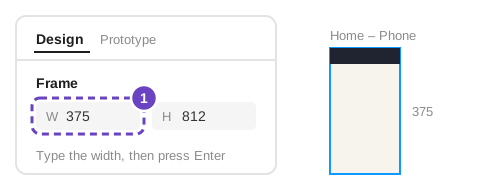
- On Designs, press F and draw a frame. In the right panel, set its width to 375 and height to 812, and name it
Home – Phone. - Inside it, draw a frame named
headeracross the top and add your name with the Text tool.
© Created by Sara Rosenstock, Marietta College Graphic Design.