Figma Workflow · Page 6 of 8
Design responsive frames
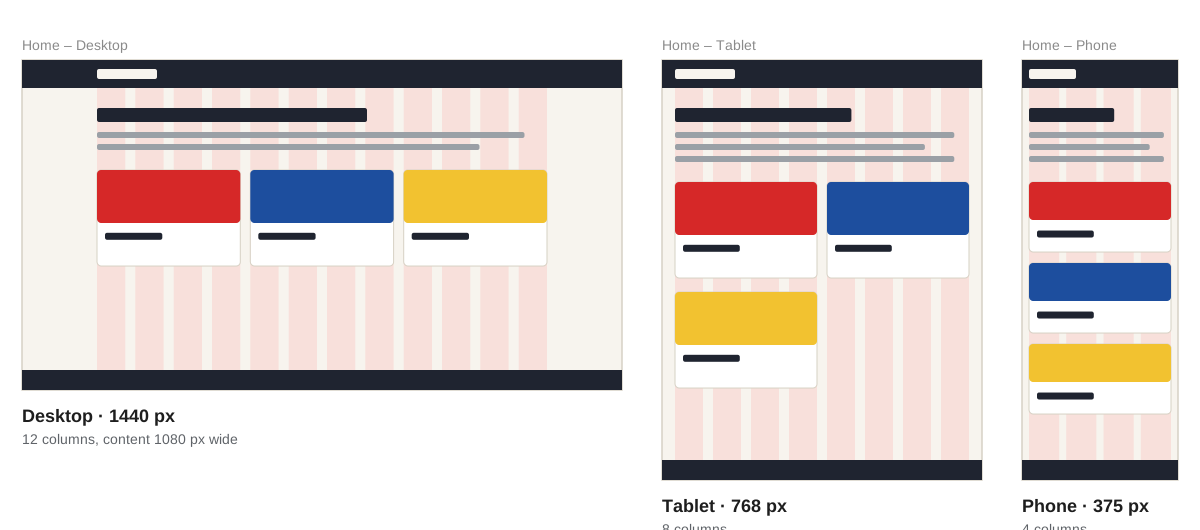
Design each page at phone, tablet and desktop widths on a column layout guide, using real content and layer names that match your HTML.
Your website will be read on phones, tablets and desktop screens. Designing one page at three widths lets you decide in Figma how the layout should change, instead of guessing while you code.
Start with real content
Design with your actual headings, paragraphs and images, not placeholder text. Real words show you how much room a page needs, and they reveal problems such as a heading that wraps onto three lines on a phone.
Set up the frames
| Frame | Width | Layout guide |
|---|---|---|
| Phone | 375 px | 4 columns, 16 px margin, 16 px gutter |
| Tablet | 768 px | 8 columns, 32 px margin, 24 px gutter |
| Desktop | 1440 px | 12 columns, content 1080 px wide and centered, 24 px gutter |
Draw a frame (F) and type the width into W in the right panel. The height can grow as you add content.
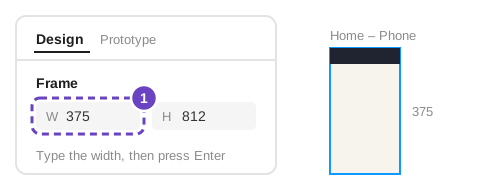
Type the width into W. Add a layout guide. With the frame selected, click + next to Layout guide (older versions call it Layout grid), choose Columns, and enter the numbers from the table.
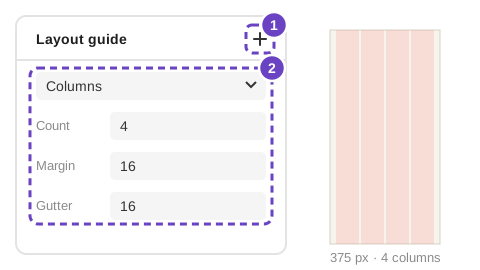
Click + beside Layout guide, then set the columns. Line content up with the columns. On desktop, a card that spans 4 of 12 columns means three cards fit in a row.
Duplicate and rearrange. Finish one size, then copy its contents into the next frame and rearrange them rather than starting over.
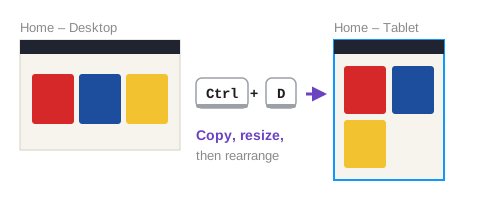
Duplicate the frame, resize it, then rearrange the copy.
Real screens come in every width in between, so think of 375, 768 and 1440 as samples. Inside each frame, use Auto Layout with Fill container so the design stretches. Then the code can do the same with flexible grids and two media queries.
Name layers after your HTML
Look at the layers panel for any frame. If it reads like an outline of your page, writing the HTML will be easy:
Every name on the left becomes an element in index.html: <header>, <nav>, <main>, <section class="intro"> and <footer>.
What changes between sizes
- Columns: cards and thumbnails go from one column on phones to two or three on wider screens.
- Navigation: buttons may wrap onto two lines on phones, or collapse into a menu button.
- Type: large headings usually shrink a little on phones. Body text stays at least 16 px.
- Nothing else. Colors, fonts and components stay the same, which is why you built them first.
Quick practice
- Create the three frames for one page and add the layout guides from the table.
- Design the desktop version with your components, then rearrange copies for tablet and phone.
- Check the layers panel: rename anything still called
FrameorRectangle.
© Created by Sara Rosenstock, Marietta College Graphic Design.