Figma Workflow · Page 7 of 8
Prototype and hand off
Link your frames into a clickable prototype, test it like a visitor would, then prepare the file so the design can be built in code.
Link the frames
A prototype turns still frames into a clickable model of your site. It is the fastest way to find a missing link or a page with no way back, before any code exists.
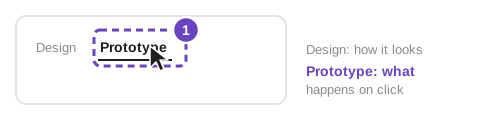
Open the Prototype tab at the top of the right panel.
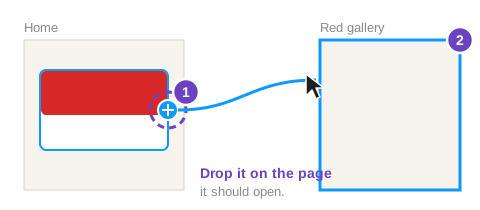
Switch to the Prototype tab. Select a button or card, then drag the round + handle on its edge onto the frame it should open.
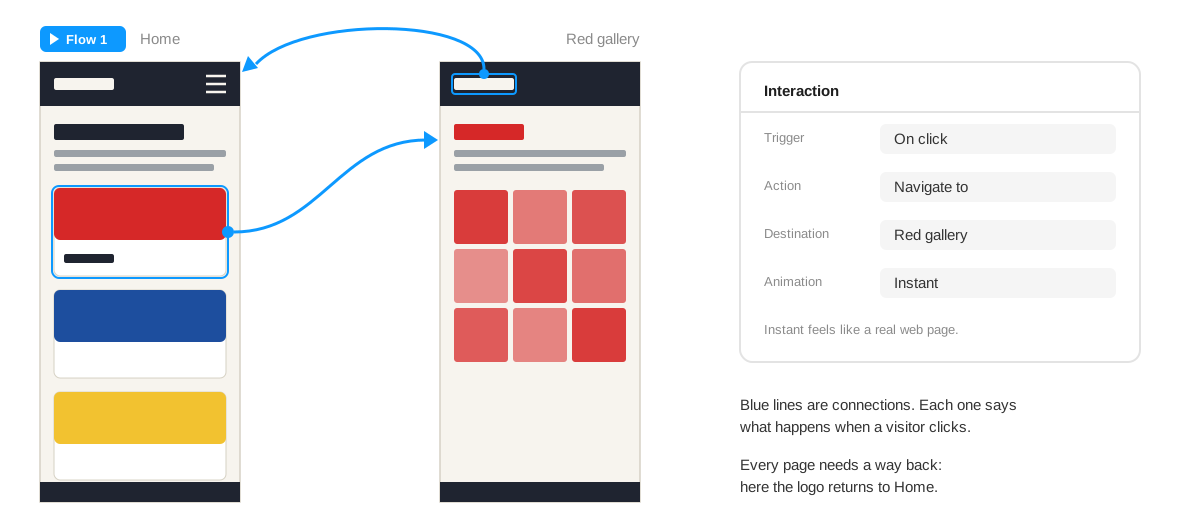
Drag from the + handle to the page it should open. Check the interaction: On click, Navigate to, the right destination, and Instant animation so it feels like a web page.
Add a way back. Link the logo and every nav button on every frame. A visitor should never get stuck.
Make hover work. In the main nav button component, link the Default variant to the Hover variant with the trigger While hovering and the action Change to. Every instance now reacts to the mouse.
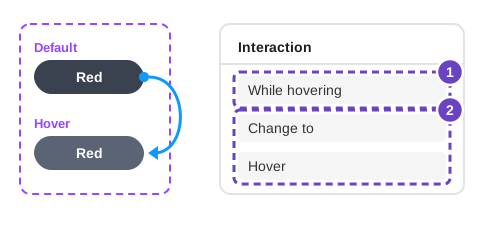
A hover connection inside the component.
Test it like a visitor
Press the play button at the top right to present the prototype. Figma starts at the frame marked Flow 1.
Click through every page from both the desktop and the phone flow. On a phone, open the same prototype in the Figma mobile app or a browser link to feel the real size.
Share it for critique. Click Share, then Copy link. Make sure the link lets anyone with it view the file.
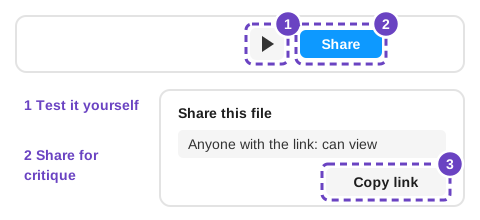
Present with the play button; share with Copy link.
Hand off to code
“Handoff” is the moment a design goes to the person who builds it. In this course that person is you, so a tidy file saves you hours later.
Export what code can’t draw
- Logo and icons as SVG. Select the layer, click + next to Export in the right panel, choose SVG and click Export. SVG stays sharp at any size.
- Textures or illustrations as PNG at 2×, so they look sharp on high-resolution screens.
- Not photos or text. Prepare photos in Photoshop, and let the browser draw text, colors, buttons and cards from your HTML and CSS.
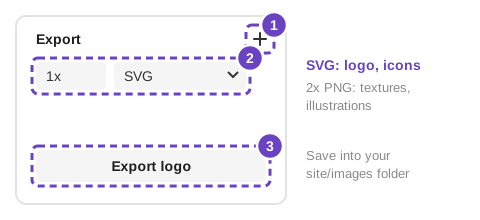
Read the design as code
Select any layer and the right panel shows its exact size, colors and spacing. Hold Alt (Option on a Mac) and point at another layer to measure the distance between them. If your plan includes Dev Mode (the </> switch in the toolbar), it shows the same values written as CSS.
The CSS that Figma shows describes one layer at one size, with fixed pixel values. Use it to look up a color or a measurement. Your style sheet should use your own variables, flexible widths and the structure you planned.
Figma to code at a glance
| In Figma | In your code |
|---|---|
| Color variables | CSS custom properties: --accent: #b4501a; |
| Text styles | Rules for h1, h2, p, with Google Fonts |
| Auto Layout | display: flex, gap and padding |
| Fill container | width: 100% or 1fr |
| Layout guide columns | display: grid with grid-template-columns |
| Components | Reusable classes, such as .topic-card |
| Hover and Current variants | :hover and aria-current="page" |
| Phone, tablet and desktop frames | Media queries at your breakpoints |
| Layer names | HTML elements and class names |
| Prototype connections | Links: <a href="red.html"> |
Before you start coding
Ready? The Triad Website, step 1.3 puts all of this to work.
© Created by Sara Rosenstock, Marietta College Graphic Design.