Figma Workflow · Page 5 of 8
Components and variants
Turn the parts you repeat into components, give them variants for hover and current-page states, and reuse them on every screen.
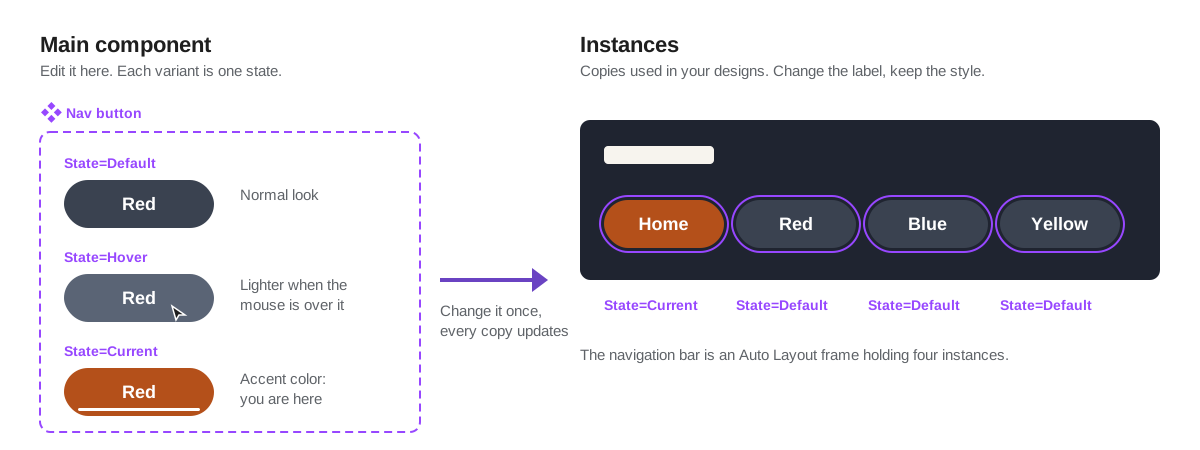
Your navigation appears on every page at every size. If it were drawn twelve separate times, one small change would mean twelve edits. A component solves that: you design it once and place copies, called instances, wherever you need it.
Make a component
Build the part first with Auto Layout and your variables and text styles, for example a nav button.
Select it and press Ctrl + Alt + K (⌘ + Option + K on a Mac), or click the component icon at the top of the right panel. Its icon turns purple.
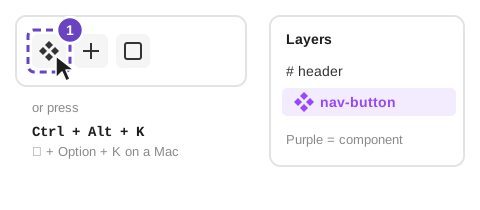
The component button, and the purple icon that confirms it worked. Keep main components on the Style guide page. Drag instances onto your designs from the Assets tab in the left panel, or copy and paste one.
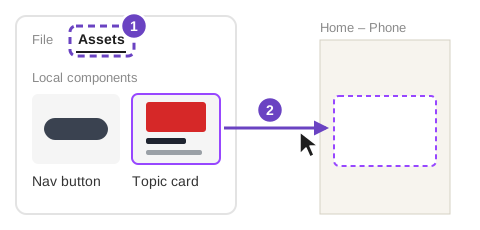
Drag an instance from Assets onto a frame.
| Term | What it means |
|---|---|
| Main component | The original. Edit it and every instance updates. |
| Instance | A linked copy. You can change its text or swap its image (an override) without breaking the link. |
| Detach | Breaks the link, turning an instance back into a plain frame. Avoid it: the copy will no longer update. |
Add variants for each state
A link on a web page looks different when you point at it and when it marks the page you are on. Variants keep those versions together in one component.
Select the main component and click Add variant in the right panel. Figma adds a second copy and puts both inside a purple dashed box.
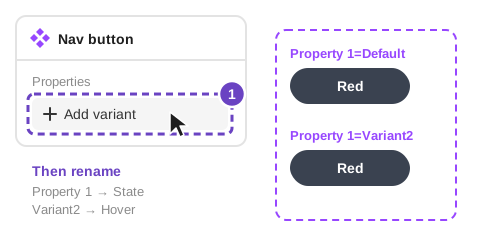
Click Add variant, then rename the property and its values. Name the property
Stateand the valuesDefault,HoverandCurrent.Change only what differs: a lighter fill for Hover, your accent color and an underline for Current.
Switch an instance’s state from the menu in the right panel. On the Red gallery page, the Red button is set to Current.
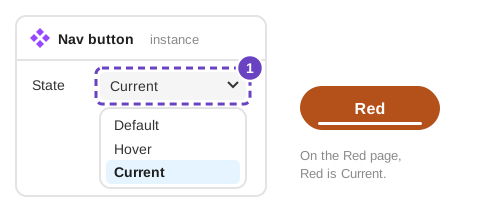
Pick a state for each instance from the State menu.
What to make into components
Make a component from anything that appears more than once. For a typical site:
- Navigation button with Default, Hover and Current variants
- Topic card with an image, heading, teaser and button
- Gallery thumbnail set to Fill container
- Header and footer, built from the pieces above
A component becomes a CSS class you reuse, such as .topic-card. Variants become states: Hover is :hover and :focus-visible, and Current is the aria-current="page" attribute you add to the link for the page you are on.
Quick practice
- Turn your button from the Auto Layout page into a component with three variants: Default, Hover and Current.
- Build a navigation bar from four instances and give each its own label.
- Change the main component’s corner radius and watch every instance update.
© Created by Sara Rosenstock, Marietta College Graphic Design.