Figma Workflow · Page 8 of 8
Quick Tips
Quick fixes for common Figma tasks and the little problems that can interrupt your workflow.
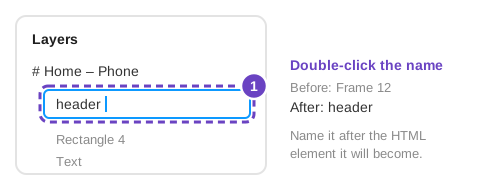
Find or select the layer you need
If clicking the canvas keeps selecting the wrong object, use the Layers panel to find and select it by name. Rename important layers as you work so they are easier to find later. To select a child layer on the canvas, hold ⌘ (Mac) or Ctrl (Windows) while clicking.
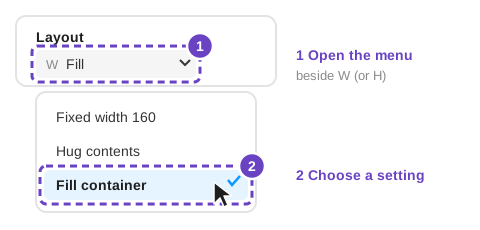
Keep an Auto Layout item from stretching
If an item grows wider than you expect, select it and check its resizing behavior in the Auto Layout controls. Use Hug contents when it should fit its contents, Fill container when it should take available space, and Fixed when it needs a specific size. See Auto Layout for examples.
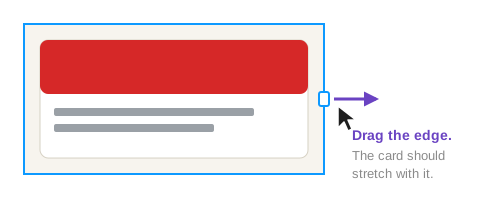
Something is cut off or overlapping
Check the parent frame before moving individual layers. Look for a frame that is too small, a child set to a fixed size, or Clip content hiding overflow. In an Auto Layout frame, adjust padding, spacing, and resizing settings first; avoid dragging children out of place.
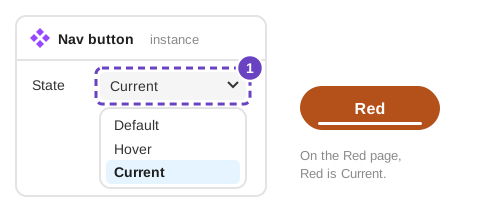
Update a repeated element everywhere
Select an instance and use the component controls to open or go to its main component. Change the main component to update all linked instances, while keeping instance-specific text or image overrides where possible. Avoid detaching an instance unless you intentionally want it to stop receiving component updates. See Components and variants.
Make a prototype link work
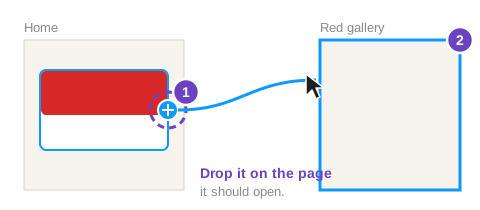
Select the button or layer that should respond, open the Prototype tab, and connect it to a destination frame. If Present opens the wrong screen, set the intended first frame as the flow starting point. Then test the link in Present mode. See Prototype and hand off.
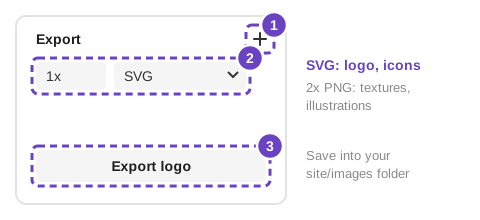
Export just the asset you need
Select the logo or icon layer, add an export setting in the right sidebar, and choose a format such as SVG for a crisp vector or PNG for a raster image. Export only visual assets that need to become files; keep ordinary page text and layout as HTML and CSS when you build the site.
Figma moves controls from time to time. Search the main menu for the feature name, or look it up in Figma’s Help Center (opens in a new tab).
© Created by Sara Rosenstock, Marietta College Graphic Design.